 Better I18N





How do I add new translation keys?
Learn how to add new translation keys — upload JSON, use AI in the dashboard, MCP tools with coding agents, or GitHub sync. All methods work on every plan.
Four ways, and the honest way to choose between them is by who is doing the work: you, an AI in the dashboard, an agent in your editor, or your own code.
All of them work on every plan, including Free.
Upload a JSON file #
Best when you already have the strings — migrating from another tool, or adding a batch someone sent you.
- Integrations → CDN
- Upload, pick your file
- Pick the format it is in: flat, nested, or namespaced
- Publish
Uploading merges: existing keys keep their translations, new ones are added. It does not wipe what is there.
Flat and nested are both accepted, so you do not have to reshape your file first:
{ "homepage.title": "Welcome" }{ "homepage": { "title": "Welcome" } }Ask the AI in the dashboard #
Best when you do not have the strings yet — you know what the screen needs, not what the keys are called.
Open the project, open the AI, and describe it:
I need onboarding strings: a welcome heading, a subtitle about what the platform does, a "get started" button, and a "skip" option. Translate to French and Spanish, then publish.
It names the keys, writes the English, translates using your glossary and guidelines, and publishes — one pass.
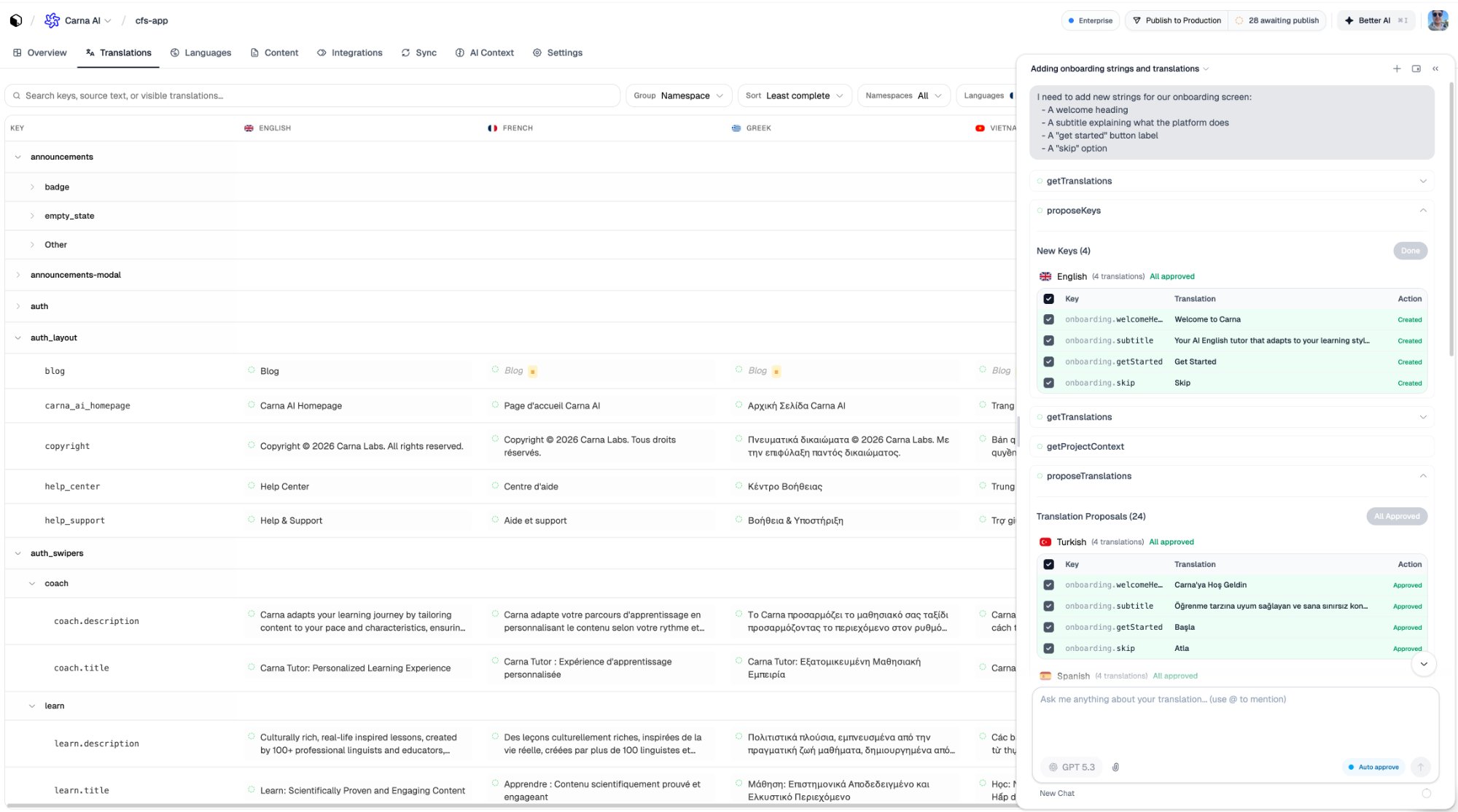
The naming is the part worth outsourcing here. Keys invented in a hurry are the ones you regret in six months.
Ask an agent in your editor #
Best when the key and the code that uses it should land together.
With the MCP server connected, ask in the same words:
Add onboarding strings — welcome heading, description, get started button, skip. Translate to French and Spanish, then publish.
The agent calls createKeys, writes the translations, and can publishTranslations when you tell it to.
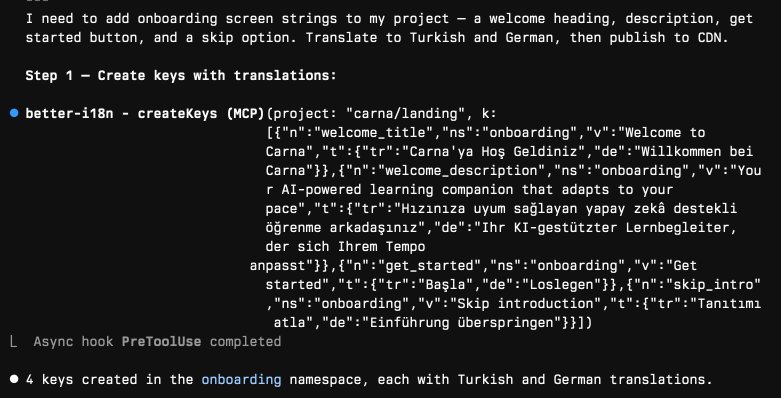
The advantage over the dashboard AI is not the typing — it is that the agent can add the key and use it in your component in the same edit, so the two cannot drift apart.
Setup: How do I use the MCP server with AI coding agents?
From your own code, with the CLI #
Best when the keys already exist in your source as t() calls.
better-i18n sync           # show what your code has that your project does not
better-i18n sync --push    # create them
The CLI does push keys — sync --push creates everything it found, and keys create adds them one at a time. Its read-only commands are the checks:
better-i18n scan            # hardcoded text that should be a key
better-i18n check:missing    # in code, not in your project
better-i18n check:unused     # in your project, not in code
better-i18n doctor           # placeholder mismatches, orphans
Setup: How do I set up the CLI and scan my project?
With GitHub sync connected #
If your repository is connected, new keys arriving in code are detected as part of the sync — no separate step. Translate them in the dashboard and publish.
Setup: How do I connect GitHub and sync translations?
Then publish #
Nothing you add reaches your app until it is published, whichever method put it there. The dashboard's Publish button, better-i18n publish, or the agent doing it for you — and up to a minute for the CDN cache after that.
Choosing #
| When | Names the keys for you | Can publish | |
|---|---|---|---|
| JSON upload | You have a file | No | After you click Publish |
| Dashboard AI | You have a screen, not strings | Yes | Yes |
| MCP agent | You are writing the code now | Yes | Yes |
CLI sync --push | The keys are in your code | No — your code named them | Separate command |
| GitHub sync | Repo connected | No | From the dashboard |