
How do I add new translation keys?
There are several ways to add new translation keys to your project. Choose the method that fits your workflow — all methods work on every plan including free.
Method 1: Upload a JSON file (recommended for CDN-only projects)
Best for: adding many keys at once, migrating from another tool, or updating a CDN-only project.
- Go to your project → Integrations → CDN
- Click Upload and select your updated JSON file
- New keys are merged with existing translations — nothing is overwritten unless the key already exists
- Click Publish to push changes to the CDN
Your JSON file should follow the flat key-value format:
{
  "homepage.title": "Welcome to our app",
  "homepage.subtitle": "The best way to manage translations",
  "new_feature.banner": "Try our new feature!"
}
This is the simplest way to add keys if you're working with a CDN-only project (no GitHub connection).
Method 2: Use Better AI in the dashboard
Best for: creating keys with translations in one step — no coding or JSON files needed.
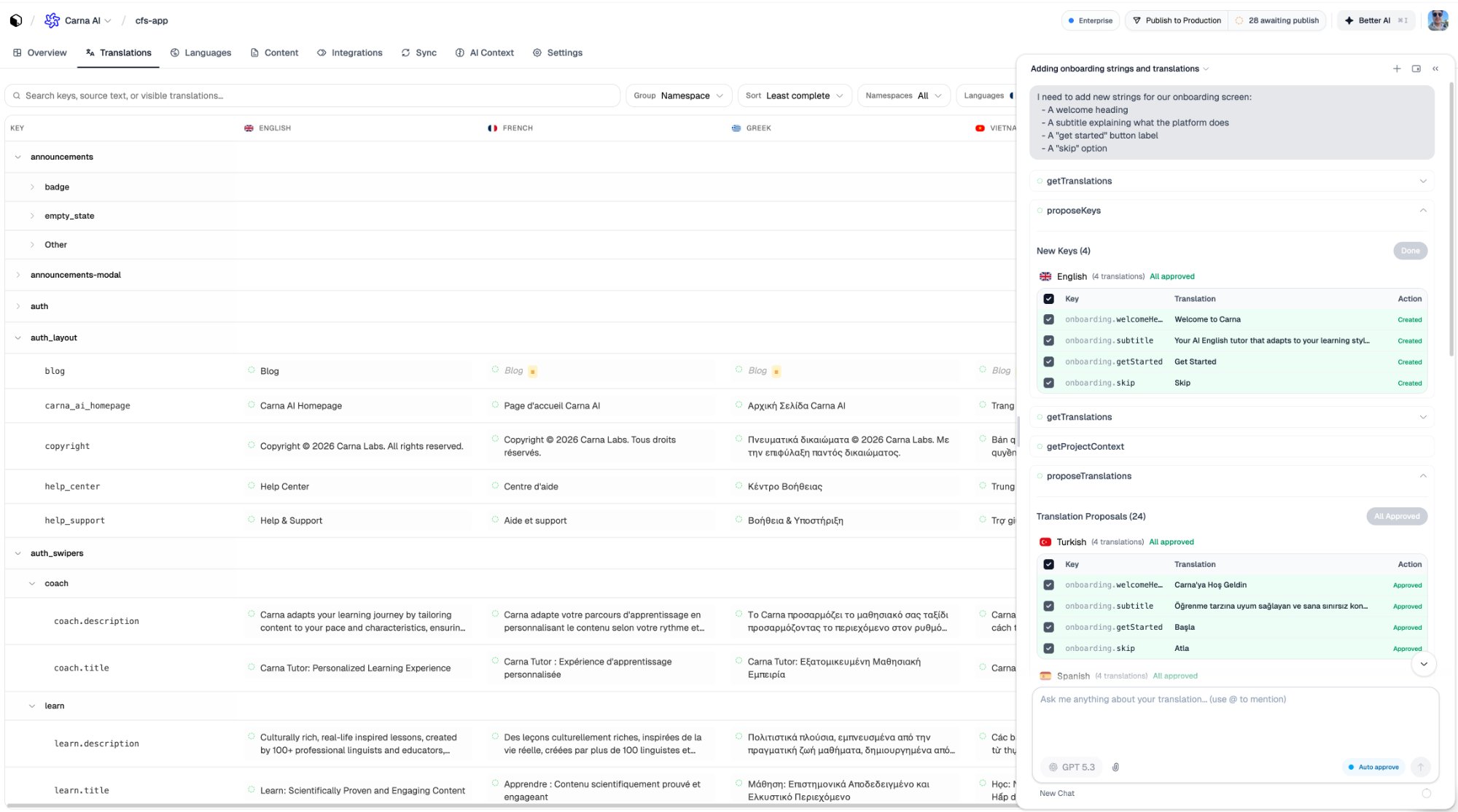
Open your project in the dashboard and click the AI button. Just describe what you need in plain language — you don't need to know key naming conventions or JSON format. The AI figures out appropriate key names and values for you.
Example — tell the AI:
I need to add new strings for our onboarding screen:
- A welcome heading
- A subtitle explaining what the platform does
- A "get started" button label
- A "skip" option
Translate everything to French and Spanish, then publish to CDN.
The AI creates properly named keys (like onboarding.welcome_title, onboarding.get_started), writes the English values, translates using your project context (glossary, guidelines, existing translations), and publishes — all in one step.
Method 3: MCP tools with AI coding agents
Best for: developers using Claude Code, Cursor, Windsurf, or other AI coding agents who want to manage translations without leaving their editor.
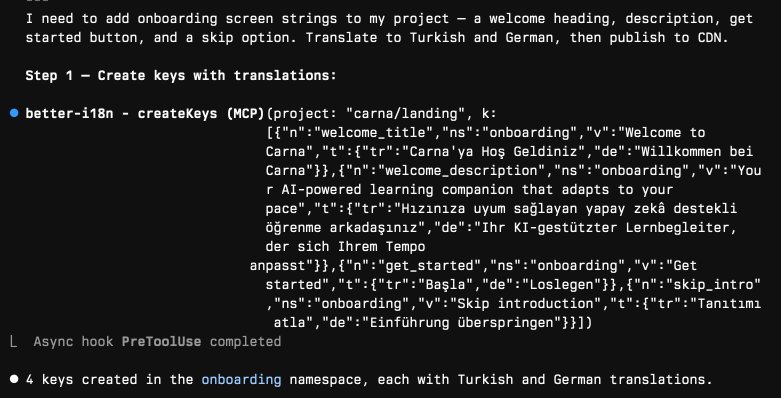
With the Better i18n MCP server configured, your AI agent can create keys, translate, and publish directly. Just describe what you need:
Add onboarding screen strings to my project — welcome heading, description, get started button, and a skip option. Translate to French and Spanish, then publish to CDN.
The agent uses createKeys to add the keys, translates them, and runs publishTranslations to deploy — all from your terminal or editor.
For MCP setup: Coding Agents · Available Tools
Method 4: GitHub sync (auto-detect from code)
Best for: teams with a connected GitHub repository who want keys to stay in sync with their codebase.
- Connect your repository in Integrations → GitHub
- Push code that uses new translation keys
- Better i18n automatically detects new keys on every push
- Translate the new keys in the dashboard, then publish
This method requires a GitHub integration — it doesn't apply to CDN-only projects.
CLI tools (audit, not push)
The Better i18n CLI helps you detect translation issues in your codebase — it doesn't push keys to the platform.
npx @better-i18n/cli scan       # Find hardcoded strings that should use t()
npx @better-i18n/cli check      # Compare local keys with Better i18n cloud
npx @better-i18n/cli doctor     # Full i18n health check
After finding missing keys with the CLI, use one of the methods above to add them (upload JSON, AI, MCP, or GitHub sync).
For CLI setup: CLI Documentation
Publishing to CDN
After adding keys through any method, you need to publish for changes to appear in your app:
- Dashboard: Click the Publish button on the project page
- MCP / AI: Both can publish automatically as part of the workflow
- GitHub: Publish from the dashboard or configure auto-publish in GitHub settings
Published translations appear in your app within ~60 seconds (CDN cache TTL).
Summary
| Method | Best for | Technical? | Adds keys? | Publishes? |
|---|---|---|---|---|
| JSON Upload | Batch import, CDN-only | No | Yes | After Publish click |
| Better AI (dashboard) | Quick additions with translations | No | Yes | Can auto-publish |
| MCP tools (coding agents) | Developer workflow in editor | Yes | Yes | Yes |
| GitHub sync | Code-first teams | Yes | Auto-detect | After Publish |
| CLI (scan/check) | Auditing codebase | Yes | No (detect only) | No |