A project is the container for all your translations. Each app or website gets its own project.
Step 1: Sign up or log in
Go to app.better-i18n.com and sign in with your account. If you don't have one, you can sign up for free.
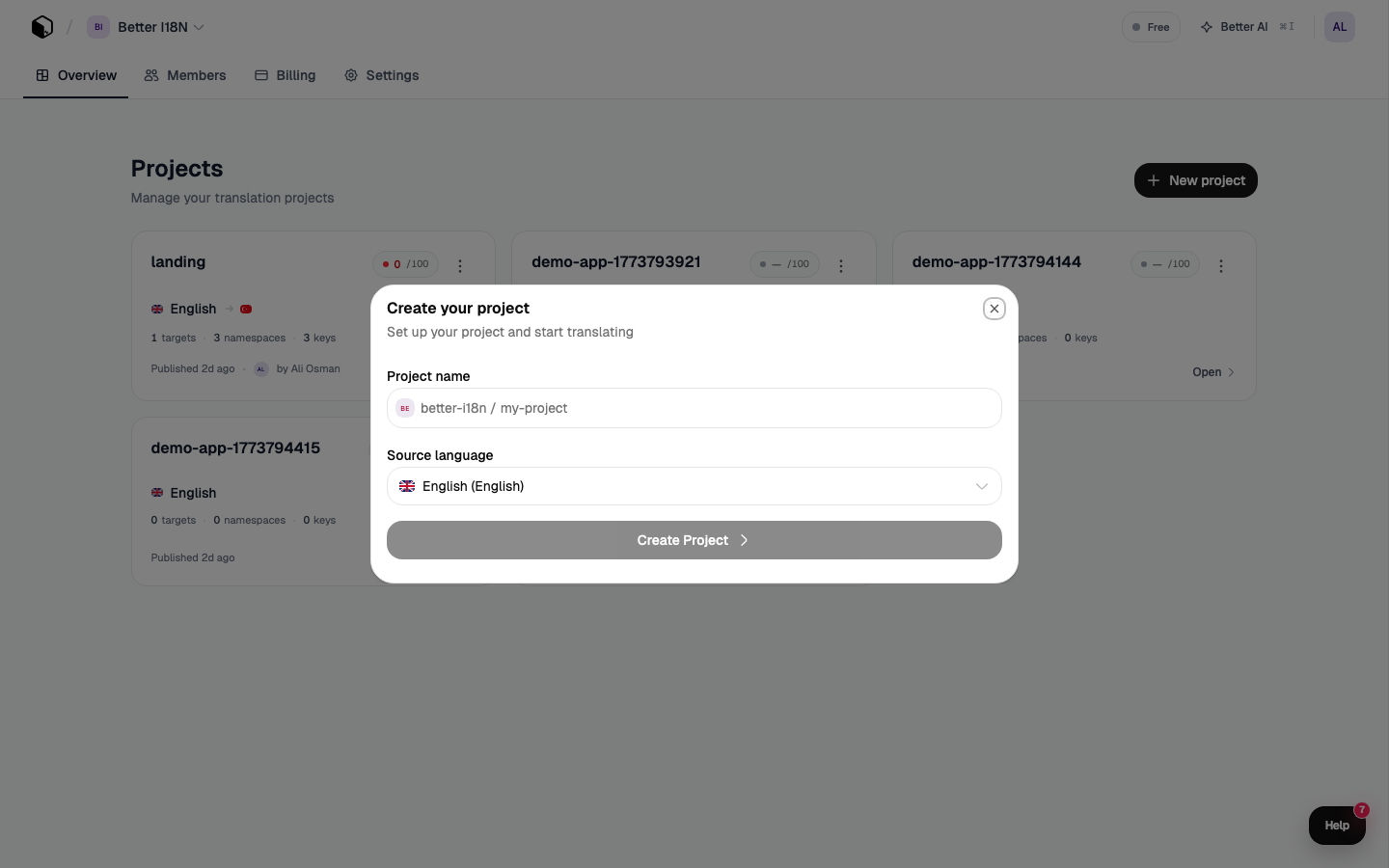
Step 2: Create a new project
- Click "New Project" from the dashboard
- Enter a project name (e.g., "My Website")
- Choose your source language — this is the language you write your code in (usually English)
- Add your target languages — the languages you want to translate to
- Click Create
Step 3: Note your project identifier
Every project has a unique identifier in org/project format, like acme/dashboard. You'll find this in your project settings. You'll need it for:
- SDK configuration (
project: "acme/dashboard") - CLI setup (
better-i18n.config.ts) - API calls
Step 4: Get your API key
Go to Settings → API Keys and create a new key. You'll need two types:
| Key type | Purpose | Where to use |
|---|---|---|
| Public key | Read-only, CDN access | Frontend SDKs, client-side code |
| Secret key | Full access | CLI, CI/CD, server-side |
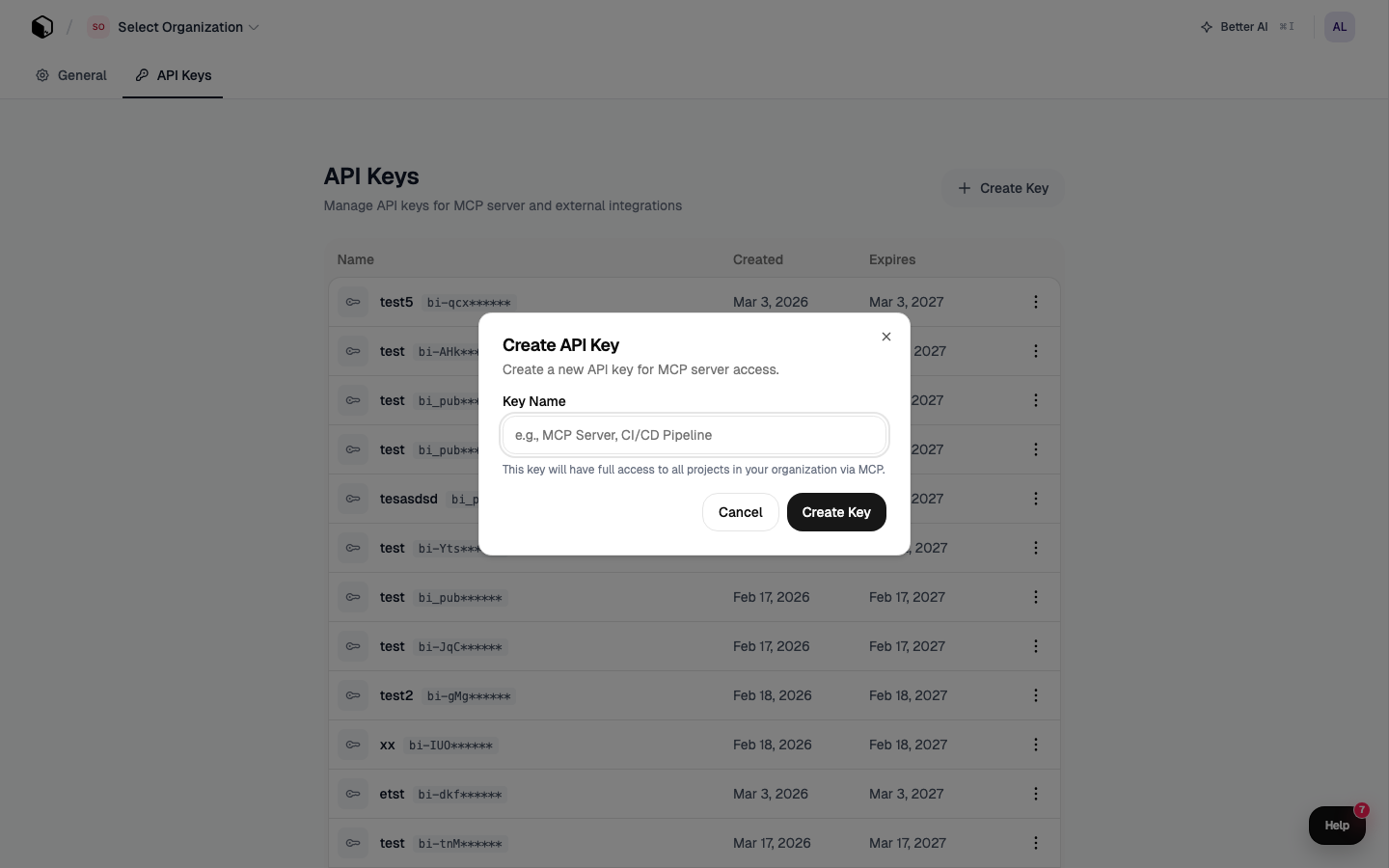
Security tip: Never expose your secret key in client-side code. Public keys are safe for browsers.
Step 5: Configure your SDK
Add your project ID and public key to your framework SDK:
// Example: Next.js
const i18n = createI18n({
  project: "acme/dashboard",
  defaultLocale: "en",
});
# Example: .env file
BETTER_I18N_PROJECT=acme/dashboard
BETTER_I18N_API_KEY=pk_...
What's next?
Was this article helpful?