
Translation keys are the bridge between your code and your translations. There are three ways to add them.
Option A: Scan your codebase with the CLI (recommended)
The CLI automatically finds all t() calls in your code and syncs them to Better i18n.
# Install the CLI
bun add -g @better-i18n/cli

# Log in
better-i18n login

# Scan your project
better-i18n scan
The scanner detects patterns like:
t('key.name')— standard translation callst('namespace:key.name')— namespaced keysuseTranslations('namespace')— namespace declarations
After scanning, run better-i18n sync to push discovered keys to the dashboard.
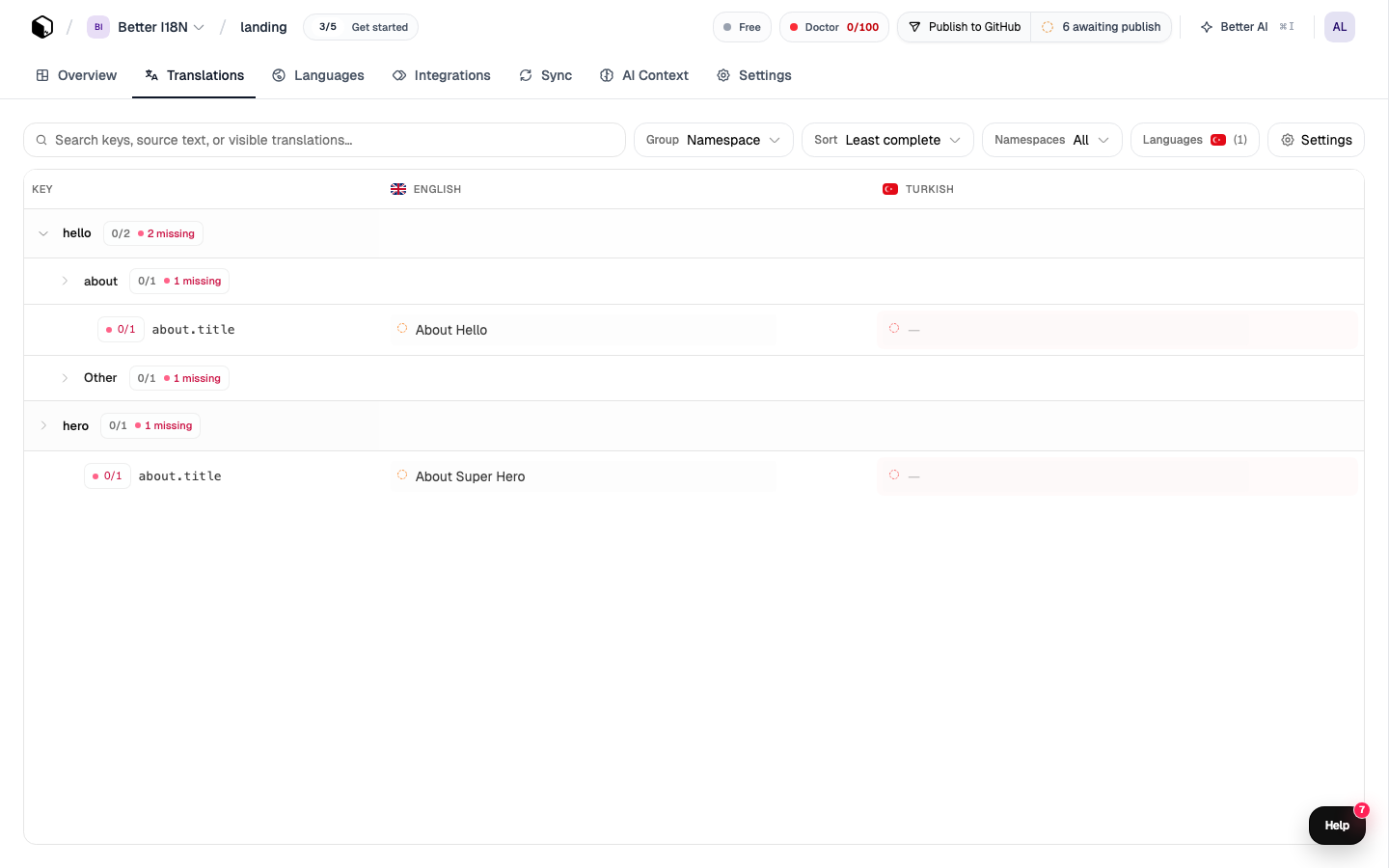
Option B: Add keys manually in the dashboard
- Go to your project in the dashboard
- Click "Add Key"
- Enter the key name (e.g.,
common.save_button) - Add the source language value (e.g., "Save")
- Optionally add context to help translators understand where the key is used
Option C: Use an AI coding agent with MCP
If you use Claude Code, Cursor, or another MCP-compatible agent, the Better i18n MCP server can create keys directly:
"Add a translation key common.welcome_message with value 'Welcome back!'"
The agent will use the createKeys tool to add it to your project.
Key naming best practices
| Pattern | Example | When to use |
|---|---|---|
namespace.descriptor |
common.save |
Shared UI elements |
page.section.element |
settings.profile.title |
Page-specific content |
feature.action |
auth.login_button |
Feature-specific |
Tips:
- Use dot notation for hierarchy:
settings.profile.title - Use namespaces to group related keys:
common,auth,dashboard - Add context to ambiguous keys so translators know the intent
- Keep keys descriptive but concise
Verify your keys
After adding keys, run better-i18n check to verify everything is in sync:
better-i18n check
# ✓ 42 keys in sync
# ⚠ 3 keys in code but not in dashboard
# ⚠ 1 key in dashboard but not in code
Next steps
Was this article helpful?